My experience teaches me that presentations that are dramatic do well. Before I share with you why, let me define what I mean by drama.
Drama would mean creating some curiosity or suspense or humor. Something like a play or a movie. Ideally at the start and only in presentations which are not formal. You cannot dramatize a quarterly review presentation. Can you?
This month I gave 3 presentations to a group of 24 interns (if you have been following my blog you would already know I recruited these MBA interns and am getting some work done from them for my company). These 3 presentations were for the weekly review of their performance, collecting feedback and motivating them. Formal situation but required humor and there was a strong need to connect with the interns. To motivate as well as to make them comfortable.
The presentations were well received. The measure of success being the active audience participation and the fact that no one dozed off! (the review presentation used to be post market working when people were pretty tired).
There was something I did in every presentation. I gave every presentation a dramatic start.
Presentation 1. Image of Mahatma Gandhi's 3 monkeys
Presentation 2. Image of Sri Yantra with 4 numbers written on the four edges
Presentation 3. A scatter plot (with only dots and no x & y axes)
Every presentation started with an image. And this image used to be there from the start. While the students were entering the hall, were settling down. It was there staring at their face, making them think about it, discuss with each other trying to figure it out.
Day 1. They did not even know what it all was. Seeing the three monkeys they just laughed. But when I started my presentation, I talked about the 3 monkeys, asked them what they were doing on my slides. The 3 monkeys are supposed to 'see no evil, hear no evil and say no evil'. I asked them not be like the famous monkeys and to actually speak out everything in the 'feedback' session.
Day 2 was when they came across the Sri Yantra. Hardly any one knew what it was. The numbers at the edges made them make a lot of guesses but none were right. The numbers represented there were indicators of how the best and the worst students were doing in the project. Best and worst students and two parameters of evaluation. Hence the 4 numbers.
Day 3. A seasoned audience knew something would be on the slides again. They put their best fight to explain what it was. One came close and won a chocolate from me as well. But none could guess. Then I completed the chart, added the axes, put labels and went on to explain that the 24 dots resembled their performance on a 3rd evaluation parameter of the project.
These presentations taught me an important lesson. The importance of dramatizing a presentation and that too right at the start.
Honestly the first day was lucky for me. I put the image because I wanted to tell them not to keep their mouths closed and tell me how they were doing, what problems they were facing. It worked. And post that, I used an image in the next two presentations.
The reason it clicked was that every image was related to the theme of the day. Something that I wanted to discuss and something that was very important.
Day 1: Do not keep your mouths closed and speak out.
Day 2: Improve your numbers. Increase your performance.
Day 3: In chasing numbers do not lose sight of productivity (quality).
Obviously the choice of image matters and I did choose good images. But what matters more is the connect. The images gave me a platform to create enough drama at the start. Got the audience involved and all ears. And then I drove the point into their minds.
If you want to give a dramatic start to your presentation, try this out. First choose whats the most important thing you want to focus on. What's the so called theme of the day. Then choose a good image which creates enough curiosity. It should not be so obvious that you kill the suspense. Then add a bit of drama in your voice and body language and pull it off!
You will feel a lot better about life. Trust me.
Wish you luck!
Jun 30, 2009

Jun 27, 2009
Open and edit a .ppsx in MS PowerPoint
Recently a friend of mine was struggling to open a .ppsx file in MS PowerPoint. He wanted to edit some slides of the presentation but the sender of the file had sent a .ppsx instead of a .pptx.
If you have never opened a .ppsx (PowerPoint Show) file in MS PowerPoint 2007 then you might like to read on.
The solution is pretty simple. Open MS PowerPoint and then Go to Open --> Choose the .ppsx file. But in his case this was not working for some strange reason. So we solved the problem thus:
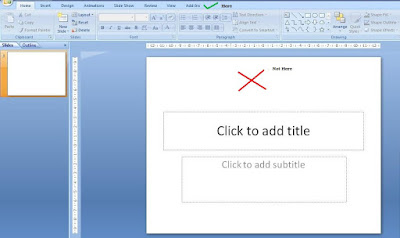 Step-1
Open MS PowerPoint
Step-2
Go to the windows folder where the file has been saved and drag the .ppsx file inside MS PowerPoint
Step-3
Drop it on the top (not on the slide)
Any faster way than this, drop in a comment.
If you have never opened a .ppsx (PowerPoint Show) file in MS PowerPoint 2007 then you might like to read on.
The solution is pretty simple. Open MS PowerPoint and then Go to Open --> Choose the .ppsx file. But in his case this was not working for some strange reason. So we solved the problem thus:
 Step-1
Open MS PowerPoint
Step-2
Go to the windows folder where the file has been saved and drag the .ppsx file inside MS PowerPoint
Step-3
Drop it on the top (not on the slide)
Any faster way than this, drop in a comment.
Jun 26, 2009
Which side of the screen do you stand?
When you stand and present which side of the screen do you prefer? Is right, right or is left right? You must have heard people recommending where one should stand. My simple suggestion to you would be: "Do not stand at one place, keep moving."
Follow these three things in all your presentations:
Stand where you are comfortable,
Stand so that you do not come in between the projector and the screen, and
Keep moving once in a while, especially to the absolute back row.
What happens when you move?
The focus shifts to you. As humans we focus on things that move. On a slide, the eyes will go first to that object which is moving/changing. So by moving some bit, you get the audience to look at you and not at the screen. I remember I asked a colleague at work to give a talk for 2 minutes and he stood almost at one corner where no one could see him. And he stood like a statue. The result, no one listened to him. Remember you are more important than the slides. So get yourself into the limelight.
Secondly, when you move you connect more with the audience, especially if the gathering is large. When I present to an audience of 25 or more, I ensure I move around, keep my hands on their shoulders or shake hands, look straight into their eyes, ask a question. I also move towards people to answer something they have asked. I have found that it helps.
You may not require much movement across the room if your gathering is small. In that case a good eye contact becomes the primary tool of audience connect.
Follow these three things in all your presentations:
Stand where you are comfortable,
Stand so that you do not come in between the projector and the screen, and
Keep moving once in a while, especially to the absolute back row.
What happens when you move?
The focus shifts to you. As humans we focus on things that move. On a slide, the eyes will go first to that object which is moving/changing. So by moving some bit, you get the audience to look at you and not at the screen. I remember I asked a colleague at work to give a talk for 2 minutes and he stood almost at one corner where no one could see him. And he stood like a statue. The result, no one listened to him. Remember you are more important than the slides. So get yourself into the limelight.
Secondly, when you move you connect more with the audience, especially if the gathering is large. When I present to an audience of 25 or more, I ensure I move around, keep my hands on their shoulders or shake hands, look straight into their eyes, ask a question. I also move towards people to answer something they have asked. I have found that it helps.
You may not require much movement across the room if your gathering is small. In that case a good eye contact becomes the primary tool of audience connect.
Jun 24, 2009
Highlighting a point impromptu in a presentation
 You are presenting the Balance Sheet of the company. This is how your slide looks like.
You are making a point about how your Current Assets are just 80 (assume $mn). You feel it is very low and want to draw the attention of the audience towards that particular figure on the slide. You had not thought of it while making your slides. But now you feel you should draw the focus towards it. What do you do?
Most people do the following:
1. They go towards the slide and point this number using their fingers, or
2. They use a wavering laser pointer to point it out, or
3. They do nothing. Just say, 'Gentlemen focus on the how small our Current Assets have become. Just 80!'
Which one do you use when you have to highlight a point on the slides? Think about it before you read on.
In case, you had thought of it before then you could have used animated boxes/circles/arrows to appear over/near the figure of $80mn. But how do do the same thing impromptu?
You can use the feature called 'Pointer Options'.
 Step-1
While you are on the slide in Slide show mode, right click on the slide with your mouse pointer.
Step-2
Choose Pointer Options
Step-3
Choose from Ball Point Pen, Felt Tip Pen or Highlighter
Step-4
Suppose you choose the Felt Tip Pen. Now, on the slide encircle the figure 80 using left click (the way you normally draw figures in PowerPoint or use MS Paint).
Step-5
After the slide show is over, you can choose to discard or save the figure you have just drawn.
 When to use this method
1. When you have to highlight a point impromptu (you had not prepared for it earlier).
2. When the audience is unable to focus on the number (out of a cluttered table for example).
Try using this technique in your next presentation and you will definitely find it useful.
Jun 23, 2009
Poll: How template savvy are you?
Most of us use templates for our presentations. Some people like to just use a standard one (already in-built in PowerPoint) whereas some take the pains of finding new templates online. Some even design their own templates.
I have put up a poll on the blog (look to your left) trying to find your template using behavior. Do take out 5 seconds and participate. I will share the results after the poll is over.
I have put up a poll on the blog (look to your left) trying to find your template using behavior. Do take out 5 seconds and participate. I will share the results after the poll is over.
Jun 20, 2009
Yes I am talking to you
I started this blog in January this year and it has been quite a journey for me. Sort of extended my love for presentations to the blogosphere. Have written about a host of topics and there are many more to come. I believe in practical stuff and hence always try to relate everything I say to a real life incident.
Over the last five and a half months, have seen quite a decent number of readers on the blog. And so today this post is directed at you. Yes, YOU who is reading this post right now!
If you are reading my blog and have been visiting quite often, one thing is clear, that you are interested in presentations. But what more? I would like you to talk to me. Tell me what you like and what are you looking for. What brings you here and what keeps you with me. I want to talk to you, my invisible co-passenger in this journey called 'allaboutpresentations.'
Write to me at vivek [at] jazz factory [dot] in or comment on this post.
Over the last five and a half months, have seen quite a decent number of readers on the blog. And so today this post is directed at you. Yes, YOU who is reading this post right now!
If you are reading my blog and have been visiting quite often, one thing is clear, that you are interested in presentations. But what more? I would like you to talk to me. Tell me what you like and what are you looking for. What brings you here and what keeps you with me. I want to talk to you, my invisible co-passenger in this journey called 'allaboutpresentations.'
Write to me at vivek [at] jazz factory [dot] in or comment on this post.
Jun 16, 2009
#2 Be a Charts Champion with Pointy Haired Dilbert
Pointy Haired Dilbert (PHD) is a blog which helps you with Charts and Excel tips. Though you can create charts directly in PowerPoint, many people do create charts in Excel and knowing how to use Excel is always a good skill for a presenter.
 This blog basically helps you become better at charts. For example, see this link: Create a Dynamic Chart in Excel in 2 minutes: A decent trick which is very easy to create. Also see this or this post; Making Dynamic Charts using Data Filters or this; Compare one value with a set of values. The blog also has a Chart Doctor series wherein you can submit your actual chart (which might not be so good) and they will work on it and make improvements.
There is more. Do you want to create Venn Diagrams for presentations? You can learn how to do that here.
This was my second post in the series: 'Be a Charts Champion'. If you know of any good resource on Charts and Graphs, leave a comment. And yes, remember to check the Pointy Haired Dilbert out!
 This blog basically helps you become better at charts. For example, see this link: Create a Dynamic Chart in Excel in 2 minutes: A decent trick which is very easy to create. Also see this or this post; Making Dynamic Charts using Data Filters or this; Compare one value with a set of values. The blog also has a Chart Doctor series wherein you can submit your actual chart (which might not be so good) and they will work on it and make improvements.
There is more. Do you want to create Venn Diagrams for presentations? You can learn how to do that here.
This was my second post in the series: 'Be a Charts Champion'. If you know of any good resource on Charts and Graphs, leave a comment. And yes, remember to check the Pointy Haired Dilbert out!
Subscribe to:
Posts
(
Atom
)