Posts

Showing posts from July, 2009

What do you hate the most in a Presentation?

Image
All the time we think from the point of view of a presenter. I should do this and I should not do this. But remember that other than being a presenter you are also an audience. Why not learn from others' mistakes? So the question I have for you today is: "What do you hate most in a presentation?" Think as an audience. Try to remember the last presentation you saw. What did you dislike most? The amount of text on the slides, font size, template, sleepy voice, spelling mistakes, lack of passion, etc. etc. To reply leave a comment on the blog or mail to vivek [at] jazz factory [dot] in . Interesting answers will find a mention on the blog.

#4 Charts Champion: When Legends Fail

Image
Many a times we take the liberty of putting in too much data on our charts. We overestimate the capability of the tool (charts) and also overestimate the intellectual & visual capabilities of our audience. Look at these two charts which I happened to see in the recent past. I have kept the chart similar to the original one I saw but I have changed the context for reasons of confidentiality. Chart 1 is trying to depict how sales of 9 products have moved over the past six months. Chart 2 depicts which product of a company contributes to how much percentage of net profits. What is wrong with these Charts? Chart 1 is full of clutter. It has no values mentioned anywhere and it is very confusing. More than all this, one cannot even figure out which line denotes which product. An Orange is very similar to a Brown when seen from a distance. Chart 2 is also asking too much of the audience. What aesthetic value does one derive in presenting a chart like this? Why should I get confused when...

#3 Charts Champion: Try Out Various Options

Image
Assume you are working in a market research firm. You are going to give an important presentation. The question you need to answer is: "Why do people work?" Is it the money? Career? or, is it just for fun? To know the answer, you have gone around and asked 100 respondents in four cities (Hyderabad, Kolkata, Delhi and Chennai). The statistics you got are something like this: How do you present this to your client so that it answers the research question in a crystal clear manner? Think for a while before reading on... The simplest way to present this data is by putting it in a 'Table' . Exactly like the image above. After putting up the slide you can talk about things like; "People in Delhi work for Fun while Chennai for Career. However the people in Kolkata are split between Career and Money, etc etc..." Most of us do this and move on. How do you know this is the best way to present this data? Can you think of other ways to present. Remember, you should...

What bothers you most before a presentation?

What is the one thing that bothers you most, just before you are about to deliver a presentation? It's on top of your mind and it bugs you. Think about the last time you were about to present. What was worrying you the most? This is my question to anyone who is reading this post. Share your answer through email ( vivek at jazz factory.in ) or by leaving a comment here. I will try eliminating that worry forever. That's my promise.

Presenting to the Media: 3 Important Lessons

Press Conferences are one place where presentations have a big role to play. Large companies regularly go in front of the media (press and TV) so that they get free PR (publicity). They organize Press Conferences in the best of hotels in town. Press Conferences are also a time when the top management gets exposed to the media and that makes it a high risk situation. You know how 'bad press' can affect a company. That's why all large organizations have PR agencies to help them 'handle' media well. PR agencies also help prepare the 'Press Kit' which is given to media persons. The kit includes a Press Brief (a printed document containing all information you want to share), Gifts, a copy of the PowerPoint presentation . Preparing a presentation for the media is slightly different from a normal presentation. First, you need to be very careful with facts and figures. Second, the presentation has to be very short and simple. Extra careful with Facts & Figur...

The Floating Header Syndrome

Image
Does your 'header text' float in the air or it has a stable base. I see many presentations which do not have any base to their headers. See for yourself which of the following looks better. This one: or, the one below: It is the second one. It looks much better and gives a kind of stability to the slide. Otherwise the whole slide will keep hanging. If this was such a simple choice then why do so many people suffer from what I call 'The Floating Header Syndrome?' I have seen quite a few seasoned presenters going for a floating header. It's time they changed. What's your style when you present?

Change your 'Outlook' towards Presentations

Two days back I attended an important presentation. It was a presentation from one of our agency guys. The presentation was in full swing when suddenly an Outlook mail alert popped up. It was very conspicuous and distracted me from whatever he was presenting. For those five ten seconds, the presenter had lost me. I was forced to focus on something else. Though not a big blunder, there is a small lesson here for all of us. When you are making a very important presentation, why is it that your internet is on? Do you care more about the mails that might come while you present or you are more bothered about the presentation you are making. Such mistakes are never planned but only forces the audiences to wonder whether they are more important or the Outlook? The same applies to presenter's mobile phone being on when he himself is talking. Suddenly it rings and the presenter apologizes. "Sorry, I forgot to switch it off." (Did you forget or you are just not bothered?) Think abo...

The Legend of Subodh Ranjan Saha: Mnemonics which last a lifetime

Image
This post is especially written for Teachers and Trainers. When you share a lot of information in a speech / talk or a presentation and the audience is required to remember it, Mnemonics play a crucial part. All of us have grown up with them and yet how many of us realize the power of Mnemonics. I have personally been a fan of Mnemonics since my school days. For every crucial concept where I needed to remember lists, I had a Mnemonic. You might still be wondering what a title I have for this post. What is the 'Legend of Subodh Ranjan Saha?' Well, this post is dedicated to my Accountancy teacher who took my tuition during my Class XI, XII and Graduation years. His name is S K Jha and he gave me one of the most interesting mnemonics in school. When I was in Class XI he told me one day; "In Balance Sheets, all the items have to come one after the other. You cannot have Unsecured Loan before Secured Loans. You have to write Investments only after Fixed Assets."...

6 months of AAP

Today on the invitation by GRIET, a prestigious college in Hyderabad, I addressed a group of 50 MBA 1st year students. I talked on Consumer Behaviour for around a hour and a half. My presentation went well and I had a nice interactive session with young students. I would share with you my experience in a few days. But today's post is for something special. My blog completed six months yesterday. I started blogging to share my views on presentations. I also wanted to learn more about presentations. It has been a great journey for me so far. I have learned a lot and am sure you are also enjoying the blog. Thanks to every reader and to everyone who commented and critiqued the blog. Special thanks to my better half (who is the backbone of my blog).

Adjusting Images in PowerPoint

Image
I use a lot of images in my presentations. They add a great look and feel to my presentation and enhance the understanding of the message. But imagine a case where you insert an image and it looks like this: Aesthetically this is not a good slide because the image has left gaps on the background. The slide can be improved a lot. So what do we do? Some people will stretch the images making it disproportionate while some will align it in the center of the slide leaving equal space on both the sides. But these are suboptimal solutions. There is a better way of presenting the image. Cropping! What stops you from playing around with the image, without changing its aspect ratio. Aspect ratio is the ratio between the width and the height of an image. If the image has 20 cm width and 10 cm height then the ratio is 2:1. If you double the image height you should double the width by two times as well, to ensure the image does not look bad. So, the way you should adjust the above image is...

How to align objects in your Presentation?

Image
Misalignment is a common problem in presentations. Many a times, objects are not aligned properly because we try to do it manually. But there is a way to achieve perfect alignment in MS PowerPoint 2007. Imagine the following image is your slide. There are three objects on the slide. Here it is objects, but these shapes can also be text boxes. How do you perfectly align them? Do not take the pain of manually trying to bring all of them in one line with or without the help of grid lines. Follow the instructions below: 1. Select all the three objects. 2. Go to Home Tab -> Align 3. Go to Align again 4. Choose from the range of options based on your need . If you want to align all of them to left, then Choose Align Left. However be careful. If you choose align left, all the objects will be aligned keeping the left most object fixed. The left most object will not be moved. Similarly, when you align right, the right most object will not be moving. If you want all the objects to be ali...

How to present one bullet point at a time?

Image
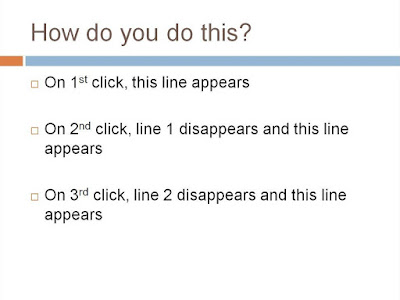
A few years back my superior at office was making a slide. He had 5 sentences (as bullet points) and he wanted to present them one at a time. He wanted to achieve what's explained in the following slide: This is not a normal animation which people use, but this can be of immense use in cases where you want to present points in a sequence. Presenting one bullet at a time ensuring full audience attention on the presented point. It is especially helpful when you have many bullet points and you don't want to show all of them on the slide. This is how you do it. Step-1 Click on the placeholder (denoted by arrow) -> Go to Animations tab -> Choose Custom Animation Step-2 Add Effect -> Entrance -> Fade This effect will ensure every bullet point will enter with a 'fade' effect. You can choose any other Entrance Effect you desire. Step-3 Under Custom Animation on the right, select Effect Options. Step-4 Under Effects Tab -> After Animation -> Choose Hide ...

Can you pass the Twitter Test?

Image
Twitter is the 'in thing' now-a-days. Every body is joining the bandwagon. In Twitter you post (or tweet) short messages to people following you. Obama's use of twitter during his Presidential Campaign has already become a marketing case study. How he kept in touch with his voters on the go. The most interesting thing about Twitter is its word limit restriction. 140 characters, that's it. It forces the user to condense the message, come to the core and reduce excess flab. Why suddenly Twitter on a presentation blog? In presentations, we are advised to 'talk less and talk sense'. Come straight to the point and don't beat about the bush. If you apply what you do on Twitter to your presentations, you can improve yourself as a presenter. The Twitter Test Imagine you are giving a presentation. Your audience is following you on twitter and instead of talking you need to tweet whatever you have to say. You can only tweet once for each slide. How will you fare in ...

Make good use of Motion Paths in PowerPoint

Image
Motion Path is a powerful animation technique in MS PowerPoint. If deployed effectively it can work wonders for you. Know when to use them and it will bring a lot of value to your presentation. For the uninitiated, Motion Path is an animation feature (Animation -> Custom Animation -> Add Effect -> Motion Paths) which allows you to move objects/text/shapes across the slide. You can move objects in any direction you want to. You can also draw a custom path and make things move. If you are a regular reader of my blog you know that I have recruited 24 interns and they are working on a project. They have been divided into 4 teams namely Victory, Superstar, Nawabs and Prince. Every week I review their performance and I present to them, among other things, their cumulative team scores. While preparing one of my review presentations, I noticed that the Prince team had done really well and came up from the last position to the second position. So after showing them the score cha...

Best of the Month: Jun '09

June was an interesting month. I gave one major presentation every week in June. And all of them were to the same audience (and it was a large audience). Hence most of the posts drew their inspiration from these experiences; preparing and giving these long presentations. My favorite posts from June are the following. Tidbits which connect with the audience: How small pieces of information about the audience or the venue can make a big difference. They help you add humor and connect better with the audience. This post is based on my presentation in a city MBA college. Dramatize your presentations: Based on three back to back presentations, this post takes you through my real journey of creating dramatic moments at the start of every presentation. What made them dramatic and how you can make your presentation dramatic as well. Are audiences sweet-toothed?: 1 day, 4 hours and 40 chocolates. A small idea which went a long way and ensured I had 100% attention of my audience for a four ho...