Posts

Showing posts from November, 2010

Wikipedia's 1 slide presentation for fundraising

Image
Last weekend I landed on Wikipedia, as I often do, when trying to find answers to things I don't know about. This time when I landed there, the web page had changed. There was a message on top of the page. Here it is for you: You must have noticed I am sure. See the message a bit more closely now. This slide made me donate a small amount of my fortune to Wikipedia. That's why I feel it is a good slide. It has the following traits of a good slide: 1. It is simple. Very few words. 2. Strong visual. Just words don't bring the emotion. A visual is needed. Remember, emotions lead to actions. 3. It connects with our hearts. See the look on the face of Jimmy Wales, the founder of Wikipedia & the words 'Please'. He almost seems to be saying it personally to you. 4. It has a call to action. 'Read Now'. It does not say 'Donate Now'. Many people might run away then. Jimmy just wants you to read his message and he is confident many will contribute after read...
PowerPoint Puzzle #2 Answer: How to make your chart interactive?

Image
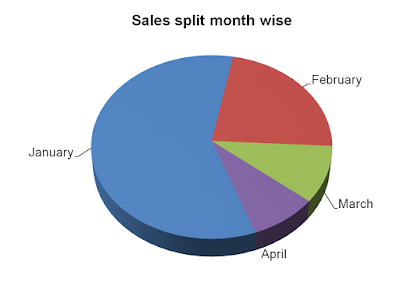
In my last post I asked a question. I shall repeat it here. Question: L ook at this pie chart closely. The challenge is to click on the blue slice of the pie and make the January percentage data appear. Then click on the blue part again and make the value disappear. Similarly for Feb, March and April. You don't need to know coding. Can we do it the simple and easy way? There are two ways we can do this. One is my way and the other is Amey's way. Amey, a reader and friend, was able to crack the answer. Solution #1 Amey Kinnerkar's Solution Solution 1A If you know for sure that you are going to go in that order (Jan, Feb, March and then April), then you can have 9 slides back to back, of the same pie. Odd numbered slides would be the one above, second with this and the Jan figures, 4th with Feb figures, n so on. So while it looks like you are clicking the blue part and that number appears, actually a click anywhere will make it appear :) Solution 1B You don't need 9 slid...

PowerPoint Puzzle #2: Make Your Chart Interactive in PowerPoint

Image
PowerPoint charts are not interactive. They are dull and boring. Can we do something about it? May be yes. Add a touch of interactivity and dynamism into our dull charts. How about a pie chart where % values are not visible at the start. While presenting when you click on a part of pie, the value appears and when you click again the value disappears. Let us try to create this effect on PowerPoint. PowerPoint Puzzle #2 Look at this pie chart closely. The challenge is to click on the blue slice of the pie and make the January percentage data appear. Then click on the blue part again and make the value disappear. Similarly for Feb, March and April. You don't need to know VBA or coding. I don't. Can we do it the simple and easy way? To give your answer email to vivek [at] allaboutpresentations [dot] com OR leave a comment here.

Create Free Tag Clouds with Wordle

Image
What is Wordle? Wordle is a free online tool which helps you create tag clouds fast & easy. For example see this tag cloud below: By typing in the URL of my blog on Wordle it has created this tag cloud for me. I can now play with this image; change fonts, styles, I can really go berserk. A tag cloud basically creates an image out of a bunch of text. The larger the font size, the more time the word has appeared in the web page or word document. How to use Wordle? You can type in a URL to generate its tag cloud and find out which words have come more often. You can also type in your text directly and create a tag cloud. This custom made tag cloud can be part of your slide. If you are making a slide on the usage share of browsers in the world and you want to show their rank in this sort of a way, you can go to Wordle and type in the names of all the browsers. But how do you add their frequency? You need to go to 'Advanced' feature in Wordle and after typing the name, type i...

Use Comments feature to review a slide and save time

Image
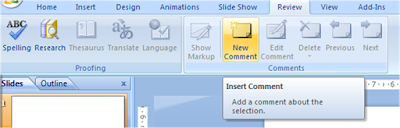
MS PowerPoint never fails to surprise me. Recently I discovered a new feature; comments . What is so common in MS Word and Excel is rarely used in PowerPoint. What is it? You can add comments to a slide or an element in a slide. You might want to check that piece of info, point out a mistake or seek an explanation. The basic objective is to flag that slide or element on the slide for future reference. There can be a table on a slide which you have not quite understood. Just add a comment there and send the PPT back to the person who made it. When to use comments? If a team is making a presentation and all members are going to work on the slides one after the other (like group projects in MBA) then Person 1 makes a slide, adds comments where he wants Person 2 to take special care. Then Person 2 works on it and sends it to Person 3 with his comments (areas where he might want Person 3 to verify or check). You can also use comments, when your colleague makes a PPT and sends it to you f...