Turn your Android Phone into a Presentation Remote
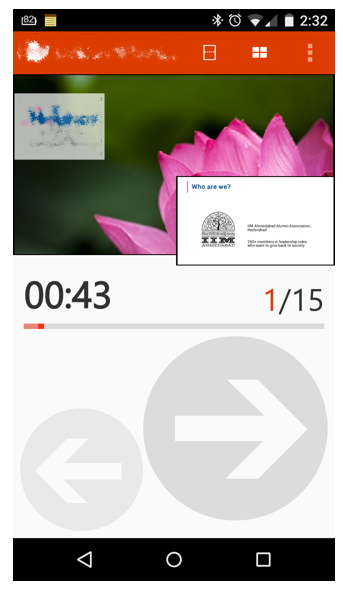
Microsoft has come up with a super app for Android users. It is called Microsoft Office Remote . With this app on your phone, you can change slides while freely roaming around the room. The app uses Bluetooth technology to connect with your laptop and converts your phone into a presenter remote. Visit the Google Play Store and install the app. Then follow the instructions. You will need to install the software on your laptop / PC as well. All the directions are there in your app. Its simple and take just a few minutes. Once you have the app on the phone and the software on the PC (and Bluetooth connection is established), you can open the desired PowerPoint file. On the top, near other Tabs will be a new add-in called OFFICE REMOTE. Click and choose TURN ON. Now go to the app and choose the PowerPoint file. Start presenting. I used the features and everything seems to be working fine. The app lets you: Change slides (go back and forth) See the upcom...
