How to Change the Default Font for New Text Boxes in PowerPoint on Mac (The Quick Fix That Works)
If you've ever set up a branded PowerPoint deck, picked your custom font, and then watched every new text box stubbornly revert to Aptos or Calibri this post is for you.
There's a lesser-known trick that fixes this in under 10 seconds. No need to touch the Slide Master. No theme gymnastics. Just a one-time setup per file.
Why PowerPoint Keeps Ignoring Your Font Choice?
PowerPoint has two separate systems for text:
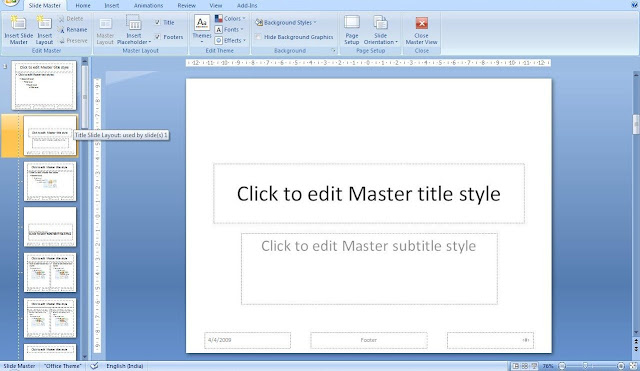
Placeholders - controlled by the Slide Master and theme fonts
Text boxes - inserted on the fly, and they follow their own default, which is almost always the Office theme font (currently Aptos)
When you use Replace Fonts, you're only swapping fonts already in use. It doesn't touch the default for new text boxes. That's why the problem keeps coming back.
The Fix: Set a Default Text Box
Here's how to make PowerPoint remember your font for every new text box in the file:
- Insert a text box on any slide
- Type something inside, select the text, and change the font to your preferred font (e.g., Inter, Helvetica Neue, or whatever
- Click the text box border so the box itself is selected (not the text inside)
- Right-click → Set as Default Text Box
That's it. Every new text box you insert in this file will now use your chosen font.
Important Caveats to Know
It's file-specific. This setting lives inside the PPTX. It won't apply to other files or new blank presentations - you'll need to repeat it, or save the file as a template (.potx).
It doesn't affect placeholders. Slide Master placeholders have their own font settings. This fix is purely for manually inserted text boxes.
Font must be installed to render correctly. If you share the file, recipients need the same font installed. If they don't have it, PowerPoint will substitute a fallback font.
Comments
Post a Comment