Posts

Showing posts from December, 2009

Do something new this 'new year'

Image
2009 is a special year for me. I started my blog this year in January. I thank all the readers, friends and colleagues who provided all the support, critique and feedback. As the last post of this year, I would like to leave you with just one thought. If you want to become better at presentations next year and are worrying about what are the things you can do. Just relax, listen to me and try just this one thing: "Do something new this new year. Take the risk to be different." Whatever style you have adopted till now is fine. But come out of that comfort zone and try something new. Give yourself time and go prepared. But do something new. For once don't worry what others will feel or say. For once put yourself in an uncomfortable position. For once prepare to fail. You will not regret it. If you can't do it this new year you will never be able to do it. So go ahead and do the new. Wish you a New New Year . Vivek - Image: Danilo Rizutti

The 11th hour Problem

Image
Sometime back I attended a presentation made by a very senior person. I have attended his presentations before and all of them have left me impressed. But the last one I attended left me with a bad taste in the mouth. It had multiple spelling mistakes. One or two typos here and there are fine. It happens to all of us (including me). But five or ten of them in the same presentation? This is something I expect from novices. Spelling mistakes attract unnecessary attention of the audience and reflects that you have taken no care while preparing the presentation. It is a trivial thing but puts off your audience. This is a mistake which you must avoid. I had also included it in my earlier post 11 things to check just before you present . Why did it happen with such a senior presenter? Well I feel it happens because of preparing your slides at the 11th hour. He must have been busy and started preparing the slides at the last. In this hurry he would have made spelling mistakes. How to a...

Best from Blogosphere: Design a Fresh Template for Your Presentation

Image
In today's post, I want to share a great tip which I read on the blog PRESENTability with DFG by Denis. There is a simple video tutorial by David Anderson which introduces a new and refreshing template design and also teaches you how to make it. Do watch the video by clicking here or see it below: What David Anderson has introduced is not just one cool template design but a 'new format' which you can use to make anything. He has created a farm and a magazine cutout. You can make a boardroom or a railway station. The possibilities are limitless. Some Observations : 1. Situation: You need to know when to use this technique and how. This template design should be used for informal situations and definitely not for quarterly review presentations. However, marketers and advertising professionals do have some more 'creative' liberty to use it in formal settings. 2. Space for Text: The designs shown in the video have one problem. They are low on space. In case you ne...

Solve this Problem: Editing Points in Motion Path

Image
Eric Pitcher from the US wrote to me a couple of days back with an interesting problem he is facing in MS PowerPoint 2007. It relates to editing points in motion paths (under custom animation). Here is the problem in his own words. See if you can solve it. ------------ "I was wondering if you have had the same problem that I have when it comes to ‘Editing Points’ on motion paths. If I animate an object with a custom, straight line motion path, most of the time I am not able to edit or add points to it. For example, I want to make an object look like it is bouncing off of the bottom of the screen. I insert a clip art object on the screen and select to custom animate. In the menu I pick: Add Effect – Motion Paths – Draw Custom Path – Line. I draw the path line across the middle of the screen from left to right. Now here is the problem: I right click on the motion path to get the Motion Path Menu. However, the ‘Edit Points’ entry is grayed out and cannot be...

Designing a logo in PowerPoint: Manage empty space

Image
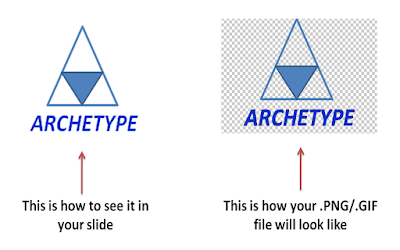
On December 3 I had shared a post on how to design a logo in PowerPoint. Click here to read that post . I would like to add to that post by sharing an important tip. If you create a logo on the slide and save it as picture (.PNG or .GIF), you will find that your logo will have empty space. Let us say, you have designed this fictitious logo in PowerPoint. As you can see, saving the image as .PNG/.GIF will mean that your logo will have empty spaces. How do you fill the empty space with the colour white? One solution is to save the image as .BMP or .JPEG. But the problem with this solution is that .BMP is a bulky format and increases the file size of your picture. .JPEG should not be used in this case because it distorts the text. To read more on this click here . The second solution, the one I use is like this: Step-1 Insert a white shape and place it over the logo unit (shape and text). Step-2 Click on the white shape and send it to back. Step-3 Group the lo...

How to outsource your presentation?

Image
Follow these 5 simple steps the next time you outsource your slides to anyone. And you will have no problems delivering a successful presentation. 1. Prepare a Presentation Brief 2. Plan the presentation along with the subordinate on a whiteboard (or paper) 3. Edit the slides which your subordinate creates 4. Rehearse the presentation 5. Re-edit the slides (if needed) These 5 steps will take care of all the problems that might occur when you present slides that someone else has created. Let's discuss each of the steps in detail. 1. Presentation Brief (30 minutes) I had introduced the concept of Presentation Brief in an earlier post. A Presentation Brief is like an advertising brief. Before making every TV commercial the client tells its advertising agency what is the objective of the commercial, what message to convey and to whom. This brief guides the agency in making a commercial which serves the clients' needs well. All you need is to spend around 20 to 30 minutes makin...

How to cut short your presentation without losing its effectiveness?

Image
Photo Credit: Michelle Meiklejohn You are the 3rd speaker at a seminar and you are supposed to speak for 45 minutes. Due to the late start of the event you have been asked to cut short the presentation to 25 minutes, what will you do? How do you get across the main message of your presentation the way you had intended? This is a situation you can never prepare for in advance. But knowing how to react will help you deliver the message with same effectiveness. Here is what you should do when faced with such a situation. 1. Do not panic: This is the first thing you should NOT do. Just because your time has been cut short does not mean your presentation is ruined. Tell yourself you will present the relevant content within the given time. 2. Do no get defensive: Do not get defensive and tell your audience that you will not be able to present properly because you have been denied the amount of time you were earlier promised. Does not help. Instead of feeling bad, start thinking and rearr...

Unleash the hidden power of your visiting card

Image
Imagine you are going to make a sales pitch or a presentation to raise sponsorship money or to get funding for your start up. What do you do first? You introduce yourself, your company and hand out your visiting card. Then you start making your presentation. Have you ever thought about the role of your visiting card? Do you know that it can act as a major differentiator for you? It can positively impact your presentation (and your business) and leave a great first impression. Take out your visiting card now and look at it. What does it say about you to an absolute stranger who will read it? What does it say about your company? Does it say anything about why one should do business with you? No. Your visiting card just conveys facts; your name, company name, designation, address, contact number and email id. Why d oes it not say anything about your work? Your Visiting Card is your slide zero. It is nothing but a two slide presentation you make about yourself and your company to the cli...

Is your presentation immortal?

Image
I was reading this post on the blog 'Eyeful Presentations' and I started wondering about Presentation Mortality . Are presentations mortal or immortal? What I mean is, you are a real estate company and you create a sales presentation for one of your projects. Can you keep showing the same presentation always? For the next 3 months... 6 months... Another example, take your own corporate presentation (which shares the corporate profile to clients) which was uploaded on your website 5 years back. Is it still relevant and alive? Has it not died? What are your thoughts on this? How long can you keep using the same sales presentation or corporate presentation or for that matter any presentation? I believe presentations are mortal. They have a useful life. Presentation being a form of communication is highly contextual. With time the environment (context) changes and your presentation begins to die. And one day... thud! it is a vestigial organ. It becomes useless. Do all presentat...

How to design a logo in PowerPoint?

Image
You want to design a simple logo but you don't know Photoshop, Corel Draw or Adobe Illustrator. What should you do? Depend on others? Need not. You can design your logo in PowerPoint and it will look very good and not take up much time. The process is very simple and needs only very basic understanding of the software. Let us take the case of how I went about designing the logo of my popular series '14 Tips to Make Awesome Charts' . Step-1 The Design You should know how your logo should look like. One has to decide on these 3 elements; shape, colour and text. I wanted the logo to be like a pie chart and the number 14 to come on one side of the pie. I wanted the logo in orange (that's the colour I use as a theme for the blog). Step-2 Create a Pie Insert a pie on the empty slide. Insert -> Shapes -> Basic Shapes -> Pie in PowerPoint 2007. This can also be done in 2003. Make a large pie so that it is easier to handle. Step-3 Rotate the Pie Format -> R...

Best of the Month: Nov '09

Hi friends November was an exciting month. I was invited to give a talk on marketing by P2W2 to a large group of start ups. Interacting with entrepreneurs always leaves you with a lot of positive energy. I also uploaded the presentation on the blog and it immediately became the most read post of the month. Another post which became popular was 'How to make slides as fast a Maggi noodles?' In this post I have shared how you can drastically cut down your slide creation time and yet not loose out on effectiveness. If you have to make a presentation in a hurry its a must read post. I introduced the concept of Presentation Brief this month. This idea originated from an observation that we go through the same process when we make a presentation. If you sit down and spend 30 minutes to fill this brief, it will bring immense amount of clarity to you and also save a lot of time later on. And finally, here are the most read posts on this blog till date: 1. How to make a presentation ...

Confirmation that we kick ass!

Image
It gives me immense pleasure to share with you that our blog All About Presentations has been included in Alltop under the category speaking . Alltop, started by Guy Kawasaki , is a collection of all the top websites/blogs on various categories. Under speaking gets covered all public speaking, communication and presentation blogs and websites. Alltop not only shares top websites from all across the world, it also acts as a feed aggregator. So it shows you the latest posts on the blogs as well. I am extremely happy that the blog could achieve this feat before its first anniversary on January 14. Thanks to all who have made it possible; my wife, my friends and a special thanks to you; my reader. I have received a very good response from all the readers across the world. Thanks to everyone who has read, commented, shared feedback and spread the word. We kick ass and so do you. Cheers! Vivek