Posts

Showing posts from July, 2013

Presentation Crossword #2 [Answers]

Image
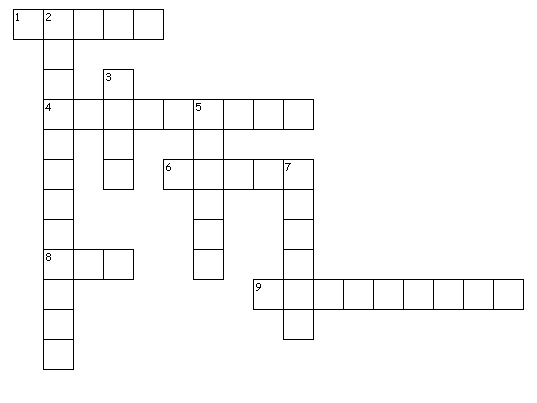
Across 1. Keyboard short-cut to undo last action. Works in MS PowerPoint, MS Excel and MS Word. It even works in Corel Draw and Adobe Photoshop. (CTRLZ) 4. He was one of the best presenters of our times. A movie based on his life is coming soon. (STEVE JOBS) 6. Popular cloud-based presentation software. Alternative to MS PowerPoint. (PREZI) 8. Mecca of presentations. View great presentations here for free! (TED) 9. You want your audience to pay _______. You get it sometimes and you lose it again. Their ______ span is very less. (ATTENTION) Down 2. Organisation which has clubs all over the world to help members improve their public speaking skills (TOASTMASTERS) 3. Group of slides (DECK) 5. You understand it, but your audience does not. Special words. (JARGON) 7. Event where you present 20 slides and every slide changes automatically in 15 seconds (IGNITE)
Getting ahead of yourself

Two days back I attended a presentation in my office. A sales person was pitching for a sponsorship. She wanted to talk about 4 things on a slide. When the slide appeared, it contained 4 lines of text. She started talking about the first point. After 30 seconds, she reached point 2. But by then I was at point 4 :-) If you have to share things one after the other, do not display all the text at once. Your audience will always jump ahead of you. Instead of listening, they will be busy reading. It is unavoidable. Use animation. Click and line 1 appears. Discuss it. Then click and line 2 appears and so on.

Presentation Crossword #2

Image
Across 1. Keyboard short-cut to undo last action. Works in MS PowerPoint, MS Excel and MS Word. It even works in Corel Draw and Adobe Photoshop. 4. He was one of the best presenters of our times. A movie based on his life is coming soon. 6. Popular cloud-based presentation software. Alternative to MS PowerPoint. 8. Mecca of presentations. View great presentations here for free! 9. You want your audience to pay _______. You get it sometimes and you lose it again. Their ______ span is very less. Down 2. Organisation which has clubs all over the world to help members improve their public speaking skills 3. Group of slides 5. You understand it, but your audience does not. Special words. 7. Event where you present 20 slides and every slide changes automatically in 15 seconds Solve this crossword and have fun! I will be sharing the answers within 2 days. Meanwhile you can share your answers through email ( vivek at allaboutpresentations dot com ) or leave your a...

Too much light affects you

Event managers might want to make the stage look very bright. This may result in too much light falling on the stage. When too much light falls on you, you will not be able to see the audience, resulting in zero eye contact. This will affect your connection with the audience. If you find too much light falling on you (as a presenter), ask the organisers to reduce it. Take charge of the room. After all it is your event and the outcome matters to you most.

Book Review: Contagious

Image
Contagious by Jonah Berger  is a brand new book which talks about one thing; what makes some products/ideas go viral? How word of mouth starts and spreads and why some products/ideas get more word of mouth than others. Who is Jonah Berger? He is a professor of marketing at Wharton. He has researched on this topic for a decade. The course he takes is called 'Contagious: How Products, Ideas and Behaviors Catch On'. Who is this book for? If you are into marketing, branding or advertising, this book is for you. If you are promoting a cause or running your own business, this book is for you. If you sell a product/service or work at an NGO and want to increase word of mouth, this book is for you. Well that covers almost all of us. What does this book talk about? This book shares a framework which can be applied to any product/service or idea to make it more word of mouth friendly. All the six steps need not be applied in every situation. The more steps you appl...

How to avoid turning your back towards the audience?

Image
Most of us have to look at the slides while presenting. Even if you have rehearsed well, you might look back at the screen a few times. For the vast majority, which does not rehearse well, looking back is common. You do it many times in a presentation. When we look back, the audience hates it. Eye contact breaks and it looks odd. It also indicates you don't know what's up there. How to avoid this situation smartly? Solution: Have a laptop in front of you (on the podium/lectern). When you want to know what's up there on the slides, don't turn your head, just look the laptop. This method is good but it restricts you free movement on the stage. You cannot get too far away from the laptop. Smarter Solution: Get a screen placed in front of you. Possibly two to three screens (depending on the size of the stage). Here is an image to clarify what I am saying. Look at the three screens in front of the presenter. I have used a yellow arrow to indicate the screens.  T...

3 Reasons why you must practice your presentation early on

Presentation wisdom suggests the following process for making any presentation. Plan your content -> Make your slides -> Practice your delivery with the set of slides. This model, which is recommended by so many experts, is wrong. Practice is required at the last, once your slides are fully ready. But practice is also required in the middle. As soon your first basic set of slides is ready, you need to p ractice. Stand up and present the slides the way you will do to the audience. Don't worry about the finishing touches. Your slides are average looking and your tables needs to be touched up. That perfect picture is still eluding you. All this decoration is for later stages. Just stand up and talk as if this is the real thing. Practice at this early stage has 3 benefits: 1. It helps you get the flow of slides right. 2. It helps you eliminate redundant slides. It helps you edit your presentation. 3. It gives you new answers and ideas (which you had missed out durin...

New way of showing milestones in your presentation

Image
I recently saw TED Talk's 'on the way to a billion views' timeline . It is a nice timeline which showcases TED Talk's journey over the last 7 years (since its inception). View the timeline by clicking here . When you keep your mouse over a dot, the milestone becomes visible. It vanishes when the mouse moves away. You can use a similar timeline in your presentation as well. 'How our company has grown over the years' is one such case. You can place your milestones on a graph and show each milestone one after another using animation. This will be much easier to understand when compared to list of bullet points. Your audience will like it more and remember it better. How do we do this in MS PowerPoint? Spend sometime playing with various graph and animation options and you'll know. First we need a graph (which goes up like this), then we need some dots and finally animation.