Posts

Showing posts from October, 2013

Most economical stock photo website online

In my last post I stressed on using professional stock images for your important presentations. In this post I want to recommend one such site. 123RF.com For my last project, I had to buy lots of stock photos online. I went around checking rates on most sites like Shutter Stock, Big Stock Photo, iStock Photo, Fotolia among others. After checking for the size of image required and various purchase plans online, I purchased from 123RF.com I found the site economical (for my image size and image type requirement). The image quality was excellent. I purchased large size images for approximately Rs. 240 per image (under $4 per image). You can buy medium resolution images for a bit less. Disclaimer: I DO NOT get any commission if you happen to buy any image from 123RF.com or any other stock site in this world and beyond :-)

3 Reasons why you must use Stock Photos

Stock Photos are photographs and images which are purchased  for use in presentations, advertising, website design, etc. I offer three reasons why you must start purchasing stock images for important presentations you make. 1. Stock photos have no copyright issues. When you download images from Google, you might download an image which has a copyright problem. The owner of that photo might not allow usage without permission. Blatantly downloading images from Google can get you into copyright issues (if you get caught). 2. Stock photos are of very good quality. They are taken by professional photographers and these photos look stunning in your presentation. It enhances the overall look and feel of your presentation. It makes your presentation look 'professional'. 3. Stock photos offer variety.  For every keyword you search, you get many stunning images. Just check out some of these sites and get a taste of it.  The costs vary a lot, so do check the rates befo...

Solution to the Problem of using Special Fonts

In my last post, I made a case for using special fonts. Using special fonts gives your audience a much needed break from Arial, Calibri and other such fonts. The problem arises when you email this presentation. The receiver does not have your special fonts and hence the outcome is a disaster. The entire purpose of using special fonts is lost. There is one simple solution to this: Convert your presentation to PDF . When you save as PDF, the fonts are saved as it is. You can now send it to anyone in the world. There will be no problem in displaying special fonts.

The Problem of using Special Fonts

You must have used special fonts in your presentations. Special fonts help us stand out from every other presentation which uses Arial or Calibri or Garamond. These special fonts are not there in our system and we download it from various websites. My favorite site is dafont . Special fonts not only help your slides stand out, they also add value if used effectively. There are certain presentations which make a strong case for using uncommon fonts like advertising agency presentations, TED, etc. Special fonts are not weird looking fonts, but simply mean fonts which are not part of our system. You can download formal or informal, all kinds of fonts from the internet. There is however one problem which arises because of this. When you email the presentation to someone who does not have that special font, the computer replaces the special font with some other font. This ruins the presentation totally. How will you avoid this problem?

Simple cure for distorted images: Lock aspect ratio

Image
Look carefully at these two images. The logo and the face both are not right. They are not in their original proportion. The logo has been squeezed from top & bottom. The face has been squeezed  from the sides (right and left). When you are re-sizing images on your slide, such errors can happen. One absolutely simple way to avoid such a problem is to lock the aspect ratio of an image. Aspect ratio is the ratio between height and width of an image. If the original ratio is 2:1 and you lock it. Even when you shrink it or enlarge it, the ratio will not change. Hence, the image will not go out of proportion. Before re-sizing any image, you should lock the aspect ratio. In MS PowerPoint 2010, right click on the image -> Format Picture -> Size -> check the Lock aspect ratio box -> Close. We are done.

Quick & easy way to align objects in PowerPoint

Image
You want to align text and images on your slide. There are many ways of doing it. Here is one simple way: Use Guides . Where is it? In MS PowerPoint 2010, under View tab, you have Ruler, Guidelines & Guide. Select Guide . How does it work? When you select the check box , two guides (lines) appear on the screen. Go outside the slide area (white area) and drag the guide to set it wherever you want.  Look at the slide below. If you want to align the two sentences, you can drag the vertical guide (vertical line) and set it near the letter W in   What (sentence on top). Now you can move the text box at the bottom to align it with the sentence on top. This technique can be used to align anything on the slide with ease.

7 things which annoys your audiences the most

Every once in two years,   Dave Paradi surveys audiences world wide. He asks them what annoys them most in presentations they attend. He recently concluded his survey. His sample size was an impressive 682. Here are the 7 most annoying things. Numbers alongside indicate % of respondents which gave that answer. 1. The speaker reading the slides (72%) 2. Text so small, the audience could not even see it (51%) 3. Writing full sentences on slides, instead of bullet points (48%) 4. Extremely complex diagrams (31%) 5. Poor choice of color (26%) 6. No clear purpose of the presentation (22%) 7. No proper flow of ideas (21%) Notice that a whopping 72% people say that the presenter was reading out the slides to them. This is what they hated the most. This is what your audience hates the most. Find out if you are also committing some of these mistakes and attempt to remove them from your presentation. Interestingly, his survey in 2011 showed a similar result. The 7 ...

Presentation Crossword #4 (The Answers)

Image
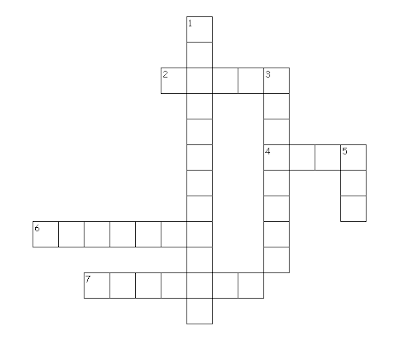
Across 2. What your audience will do when you bore them with your presentations? (SLEEP) 4. Chopping off parts of an image (CROP) 6. Popular alternative to MS PowerPoint (KEYNOTE) 7. Left align, Right align, Center align, _______ (JUSTIFY) Down 1. World famous speaker, author and trainer. Speaking courses still run in his name. (DALE CARNEGIE) 3. Pizza for the presenter, not for the audience. Most exploited chart type. (PIE CHART) 5. Image file type which is better than JPEG and GIF. (PNG)

Solve Presentation Crossword #4

Image
Across 2. What your audience will do when you bore them with your presentations? 4. Chopping off parts of an image 6. Popular alternative to MS PowerPoint 7. Left align, Right align, Center align, _______ Down 1. World famous speaker, author and trainer. Speaking courses still run in his name. 3. Pizza for the presenter, not for the audience. Most exploited chart type. 5. Image file type which is better than JPEG & GIF. Have fun while solving this crossword. Answers will follow soon. Meanwhile you can share your answers through email ( vivek at AllAboutPresentations  dot com) or leave your answers in comments.

Good, Fast & Cheap

You can only have two of the three. If it is good and fast, it cannot be cheap. If it is good and cheap, it cannot be fast. If it is fast and cheap, it cannot be good. Thanks Vijay Gopal for sharing this.  True words of wisdom on the  birth anniversary of Mahatma Gandhi .

Presentation FAQs: #7 What font size should I use in my presentation?

What is the ideal font size for a presentation?  While there is no magic figure, there are two simple approaches which will help you decide. 1. Visit the venue beforehand: This is the best solution. Visit the venue before the presentation and project your slides. Now stand at the farthest place in the room and see if you can read everything 'comfortably' . If not, increase your font size. This option is easier when you are presenting inside your classroom or conference room. If you are 25 years old and your audience might have a few senior citizens, increase the font size further. 2. The 10/20/30 rule: This is a famous rule by Guy Kawasaki (a man who has seen tonnes of venture capital PPTs). According to this Guy, you should have 30 size font in your presentation. If you are presenting in any boardroom on the planet, size 30 will serve you well. There are three ways you can make a presentation. In person or through video conference or email the presentation. In all thes...